How to white out text on a PDF with SimplePDF
Sometimes you need to cover existing text on a PDF before adding your own content on top. SimplePDF lets you add a white background to any field, effectively whiting out whatever is underneath.
- Navigate to the PDF editor over here
- Open the document from your device
- Select the field of your choice: all fields support adding a background
- Click anywhere on the document to add the field
- Click on the change background icon as visible on the picture below
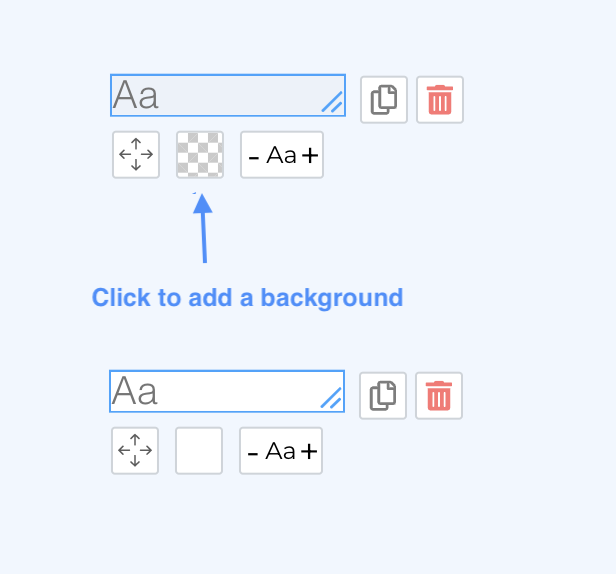
- The field now has a white background as visible on the picture
- Make additional changes if needed
- Click the Download button
This is useful when you need to correct pre-filled information, replace outdated text, or blank out a section before adding new content. Combine it with a text field to effectively replace existing text on any PDF.
That's it! The text has been covered and your document is saved to your device.
If you have any questions, feel free to reach out to support@simplepdf.com