How to copy fields with SimplePDF
When you need the same field in multiple places on a document, copying saves time over creating each one from scratch. SimplePDF lets you duplicate any field type and paste it anywhere, including on other pages.
- Navigate to the PDF editor over here
- Open the document from your device
- Select the field of your choice: all fields can be copied
- Click anywhere on the document to add the field
- Click on the copy icon as visible on the picture below: the field is now highlighted
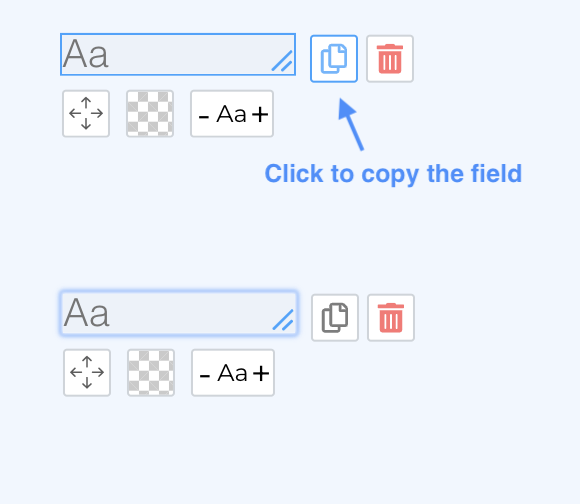
- You can now copy the field anywhere on the document (including other pages) by clicking again
- Make additional changes if needed
- Click the Download button
This works with all field types: text, checkboxes, signatures, and pictures. It is especially handy when building forms that repeat the same field layout across multiple pages.
That's it! Your fields have been copied and the document is saved to your device.
If you have any questions, feel free to reach out to support@simplepdf.com