How to configure your own Azure Blob Storage for PDF form submissions
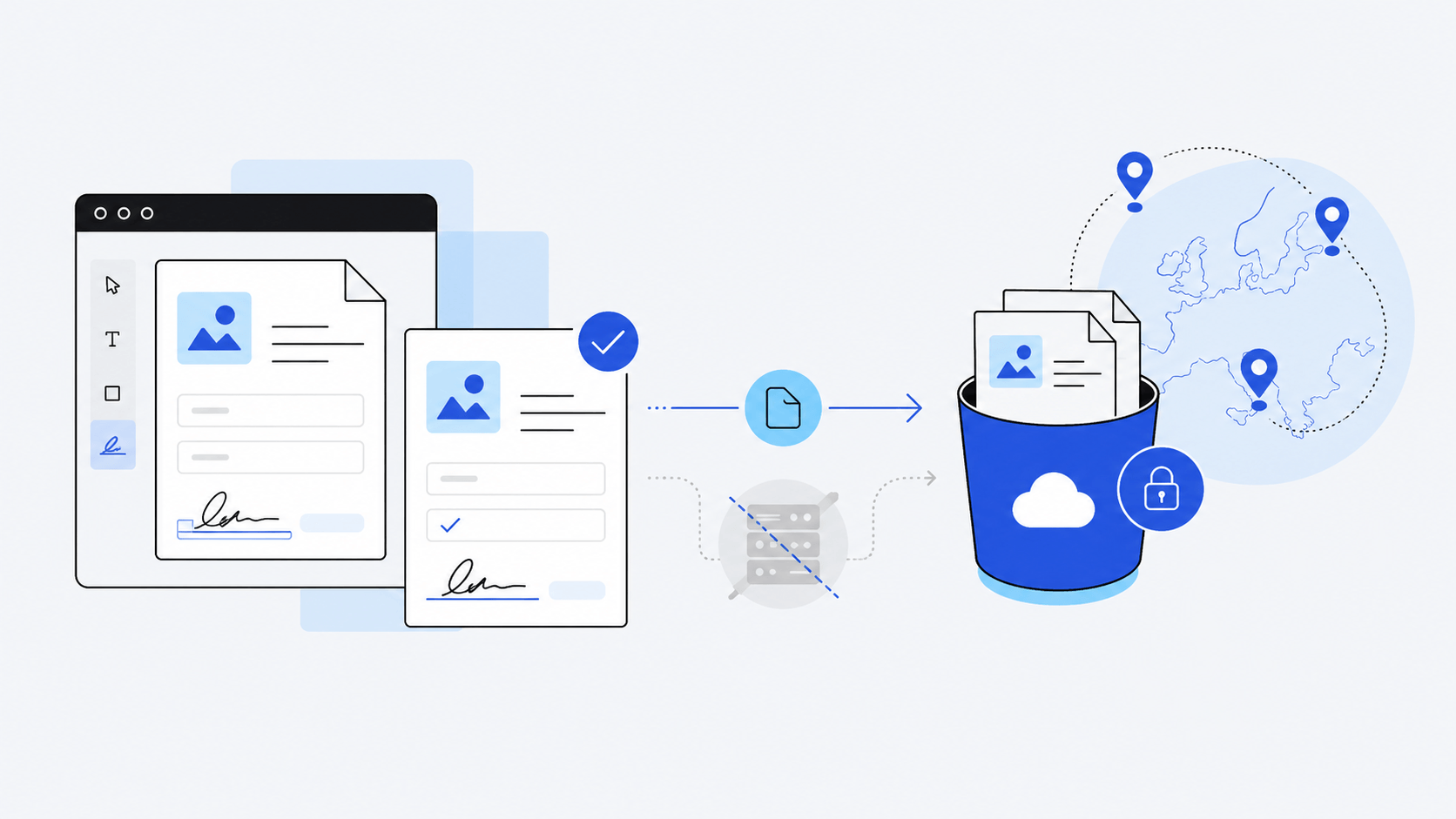
As an alternative to AWS S3, Scaleway Object Storage, or SharePoint, you can use your Azure Blob Storage to store documents and filled documents.
You may be interested in bringing your own storage (BYOS) for various reasons, such as compliance with specific rules in your country or industry, or because you wish to retain full ownership over your data.
#How the upload works
If you're interested in the overall upload mechanism and security model, head over here where we cover this mechanism for S3-compatible storage. Azure Blob Storage works identically.
The gist is that the upload happens in the browser, with the server only exchanging upload and download links: your documents never transit via the SimplePDF servers. Each link is signed by SimplePDF for a single file and expires within minutes: your credentials are never part of a link.
#How to configure your own Azure Blob Storage
Configuring your own Azure Blob Storage is available with the PRO plan
SimplePDF connects to your container with an Entra app (recommended) or an account key. With an Entra app, you decide exactly what SimplePDF can do on a single container, and you can revoke it at any time without touching anything else.
#Prepare the container
-
In the Azure portal, open your storage account (search "Storage accounts" in the top search bar). Its name is the account name SimplePDF asks for.
-
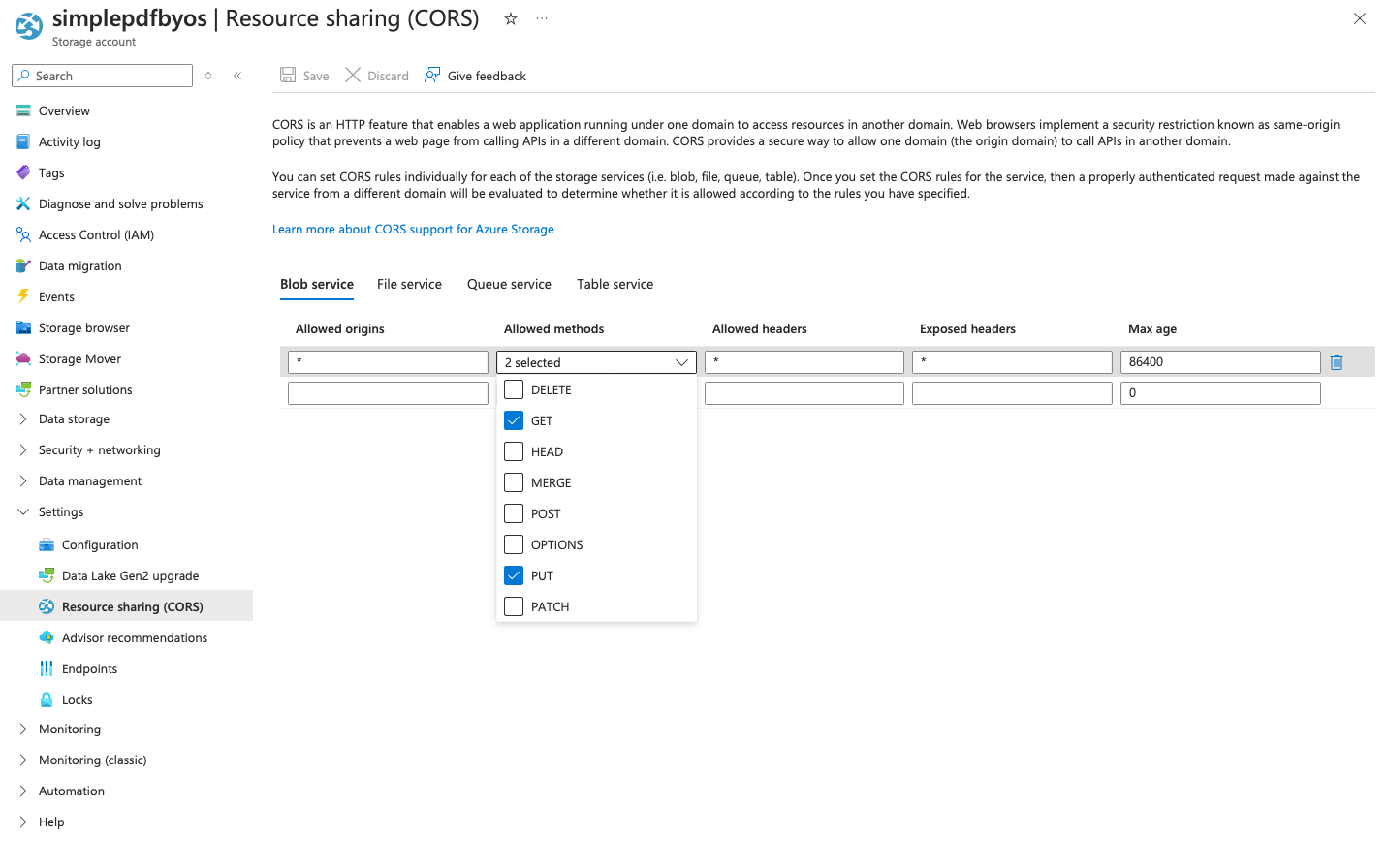
In the storage account's left sidebar, open Data storage > Containers, then click + Container to create one (keep the Private access level), or choose an existing one. Its name is the container SimplePDF asks for.
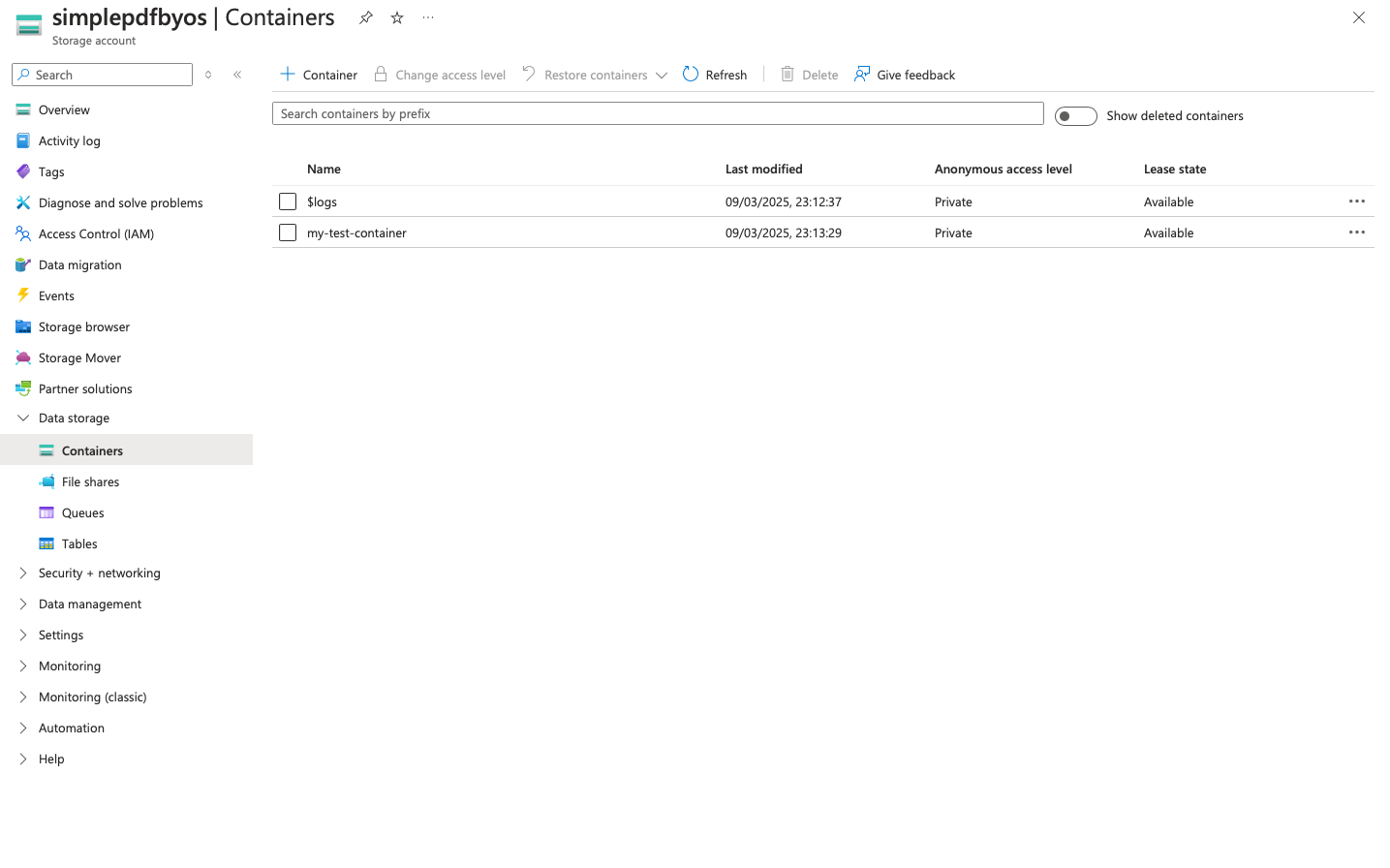
- In the left sidebar, open Settings > Resource sharing (CORS) and, on the Blob service tab, allow
PUT(andGET, unless you choose write-only access) from*origins.
You can narrow it down to your own company portal if you do not want to grant * origins: https://your_identifier.simplepdf.com
#Connect with an Entra app (recommended)
-
Open Microsoft Entra ID (search it in the top search bar) and, in its left sidebar, Manage > App registrations. Click New registration, name it (for example
SimplePDF) and keep the default single-tenant option. No redirect URI is needed. -
On the app's Overview, copy the Directory (tenant) ID and the Application (client) ID.
-
In the app's left sidebar, open Manage > Certificates & secrets and create a New client secret: its Expires choice (Recommended: 180 days, 24 months at most) is the one you pick again in SimplePDF. Copy its Value (not the Secret ID). The expiry date stays visible in the Expires column of Certificates & secrets > Client secrets.
-
On the storage account, assign the Storage Blob Delegator role to the app. It lets SimplePDF sign short-lived links, and grants no access to your data by itself:
In the left sidebar, open Access control (IAM), then + Add > Add role assignment.
On the Role tab, search for the role (here
Storage Blob Delegator), select it and click Next.
On the Members tab, keep User, group, or service principal, click + Select members, search for your app's name (for example
SimplePDF), select it and click Select.
The app is not listed until you type its exact name in the search box: the list shows users at first, and a partial name does not find the app.
Click Review + assign.
- Assign the app its data role on the container itself (not on the storage account), so it only reaches this container:
In the storage account's left sidebar, open Data storage > Containers and click your container's name.
In the container's own left sidebar, open Access control (IAM), then + Add > Add role assignment, and assign one of the roles below to the app, the same way as in step 4:
Read and write: the built-in Storage Blob Data Contributor role.
Write only: the
SimplePDF write-onlycustom role, created as described in Write-only access.
- Wait a few minutes for the role assignments to apply, then continue in SimplePDF: In SimplePDF, with Entra app as the credentials type.
#Write-only access
Write-only access uses a custom role that can create and overwrite files, but not read, list or delete them. Create it once:
-
Open your subscription (search "Subscriptions" in the top search bar) and copy its Subscription ID from the Overview.
-
In the subscription's left sidebar, open Access control (IAM), then + Add > Add custom role. On the JSON tab, click Edit, replace the content with the JSON below (with your subscription ID), click Save, then Review + create and Create.
{
  "properties": {
    "roleName": "SimplePDF write-only",
    "description": "Lets SimplePDF upload documents without reading, listing or deleting them",
    "assignableScopes": ["/subscriptions/<YOUR_SUBSCRIPTION_ID>"],
    "permissions": [
      {
        "actions": [],
        "notActions": [],
        "dataActions": [
          "Microsoft.Storage/storageAccounts/blobServices/containers/blobs/write",
          "Microsoft.Storage/storageAccounts/blobServices/containers/blobs/add/action"
        ],
        "notDataActions": []
      }
    ]
  }
}
- Assign it to your app on the container, as in step 5 of Connect with an Entra app, searching for
SimplePDF write-only.
#Or connect with an account key
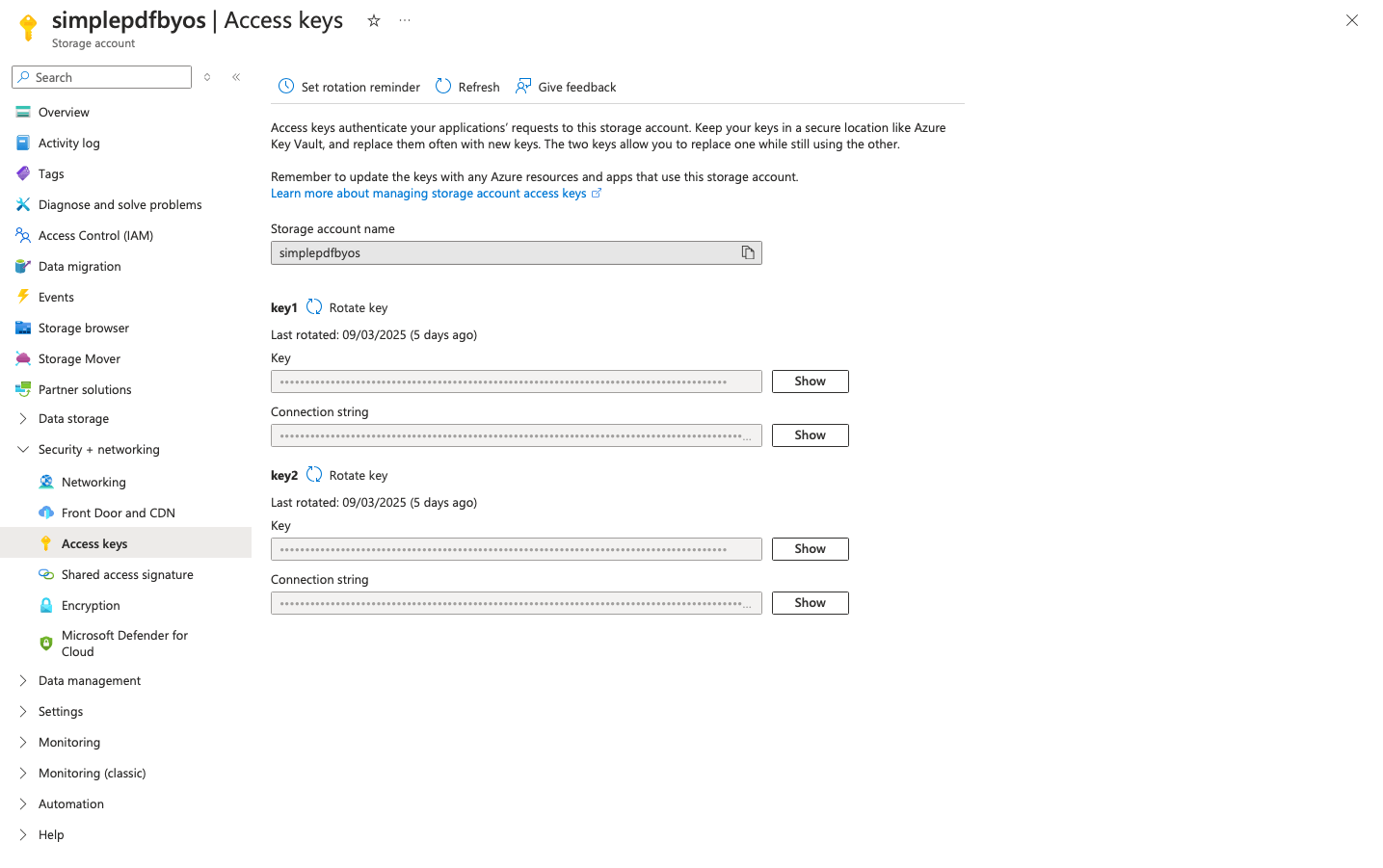
Retrieve an account key in the Security + Networking > Access keys view of the storage account. SimplePDF uses it to sign a short-lived link for each file; the key itself is never part of a link. An account key grants access to the whole storage account and cannot be limited to write-only: prefer an Entra app if that matters to you.
#In SimplePDF
- Log in to your account
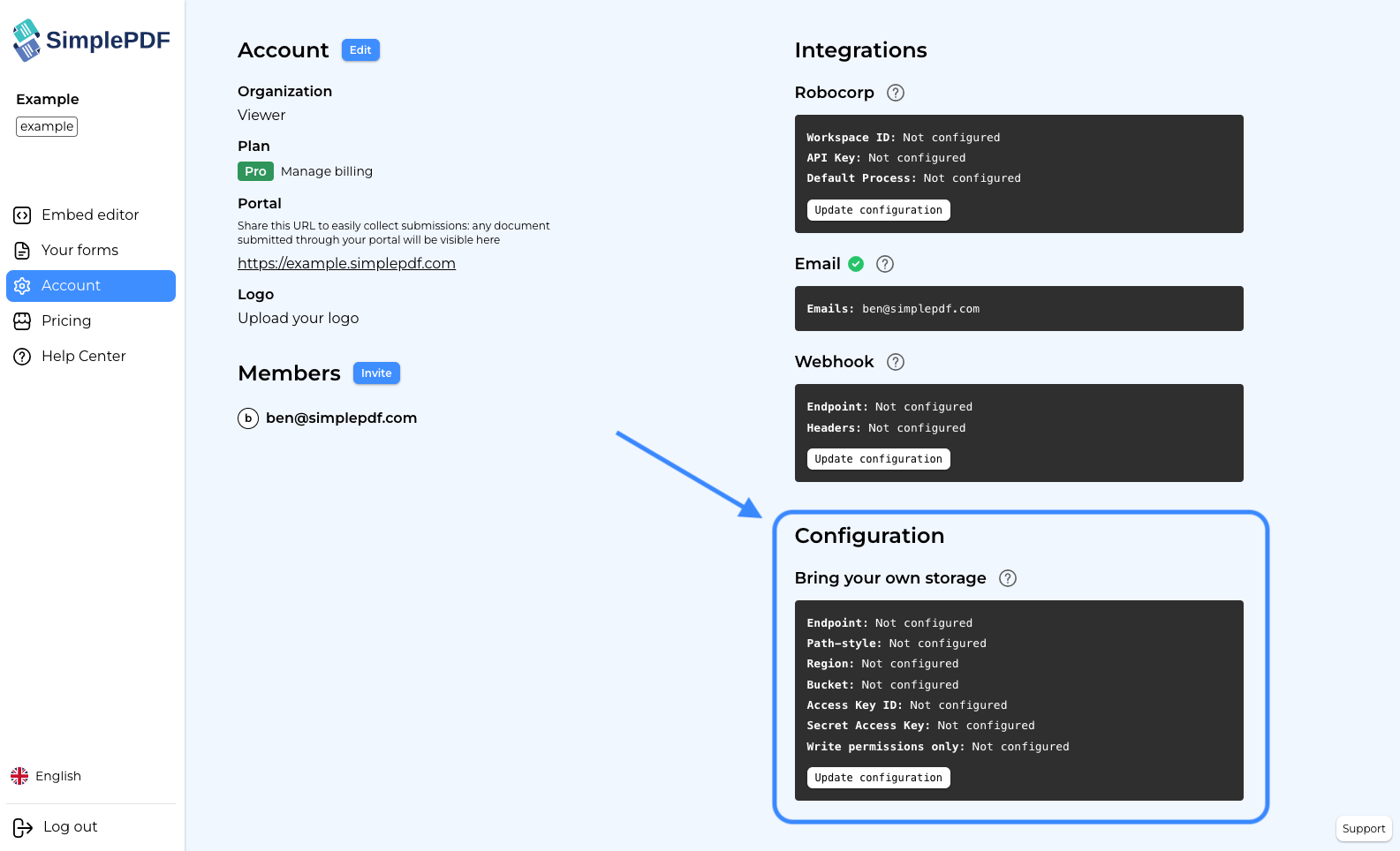
- Navigate to the account settings view:
-
Click
Update configuration -
Select
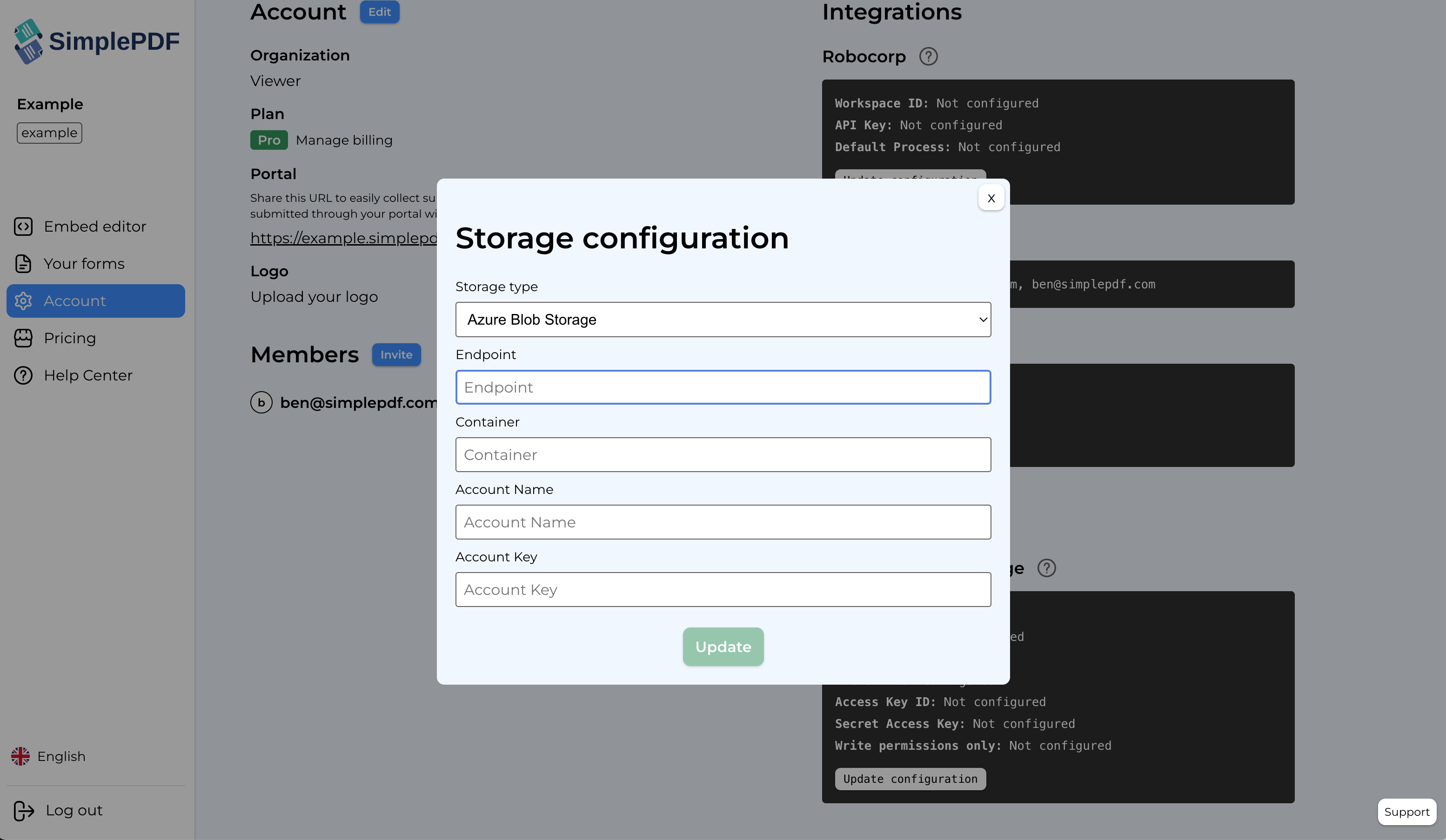
Azure Blob Storageas storage type, select the Credentials type and fill in the details:
Endpoint: https://<YOUR_STORAGE_ACCOUNT_NAME>.blob.core.windows.net, the Blob service endpoint in the storage account's left sidebar, Settings > Endpoints
Container: name of your container, from the storage account's left sidebar, Data storage > Containers
Account Name: name of your storage account. It matches the account name in the endpoint above.
Credentials type: Entra app
Directory (tenant) ID, Application (client) ID and Client secret: copied from your Entra app in steps 2 and 3.
Client secret expiry: the Expires choice you made when creating the secret (if you chose a custom date in Entra, pick the closest shorter duration). SimplePDF emails you 30, 7 and 1 day before it expires: create a new secret in your Entra app, then update it here.
Write permissions only: tick this box if you assigned the write-only role. SimplePDF checks the role when you save: if the app can still read the container, the configuration is refused until you remove read access or untick the box.
Credentials type: Account Key
Account Key: retrieved from the Access keys view of the storage account.
- Click
Update
#SAS tokens
SAS tokens are no longer accepted for new connections: a SAS token cannot sign the short-lived, single-file links SimplePDF hands to the browser, so the token itself is shared with the people submitting your forms.
If your organization already connected with a SAS token, you can keep it as long as it can only create or overwrite files: generate it on the container with the Create and Write permissions only (no Read, List or Delete). SimplePDF refuses a wider token when you save. We recommend reconnecting with an Entra app (above), then regenerating the storage account key that signed your SAS token to invalidate it.
That's it! Your documents and submissions are now automatically stored in your own Azure Blob Storage container.
If you have any questions, feel free to reach out to support@simplepdf.com