How to embed the PDF editor in SharePoint
SharePoint pages don't natively support PDF editing. With SimplePDF, you can add a full PDF editor to any SharePoint page using the Embed web part. Users fill, sign, and submit PDFs without leaving SharePoint.
Combine this with SharePoint BYOS to have submitted documents stored directly in your SharePoint document library.
Prerequisites
- A SharePoint Online site with editing permissions
- Site collection administrator access to configure iframe allow-list
Step 1: Allow the SimplePDF domain in SharePoint
By default, SharePoint restricts which domains can be embedded via iframes. You need to add the SimplePDF domain to the allow list.
- Navigate to your SharePoint site
- Click Site contents in the navigation
- Click Site settings in the top-right
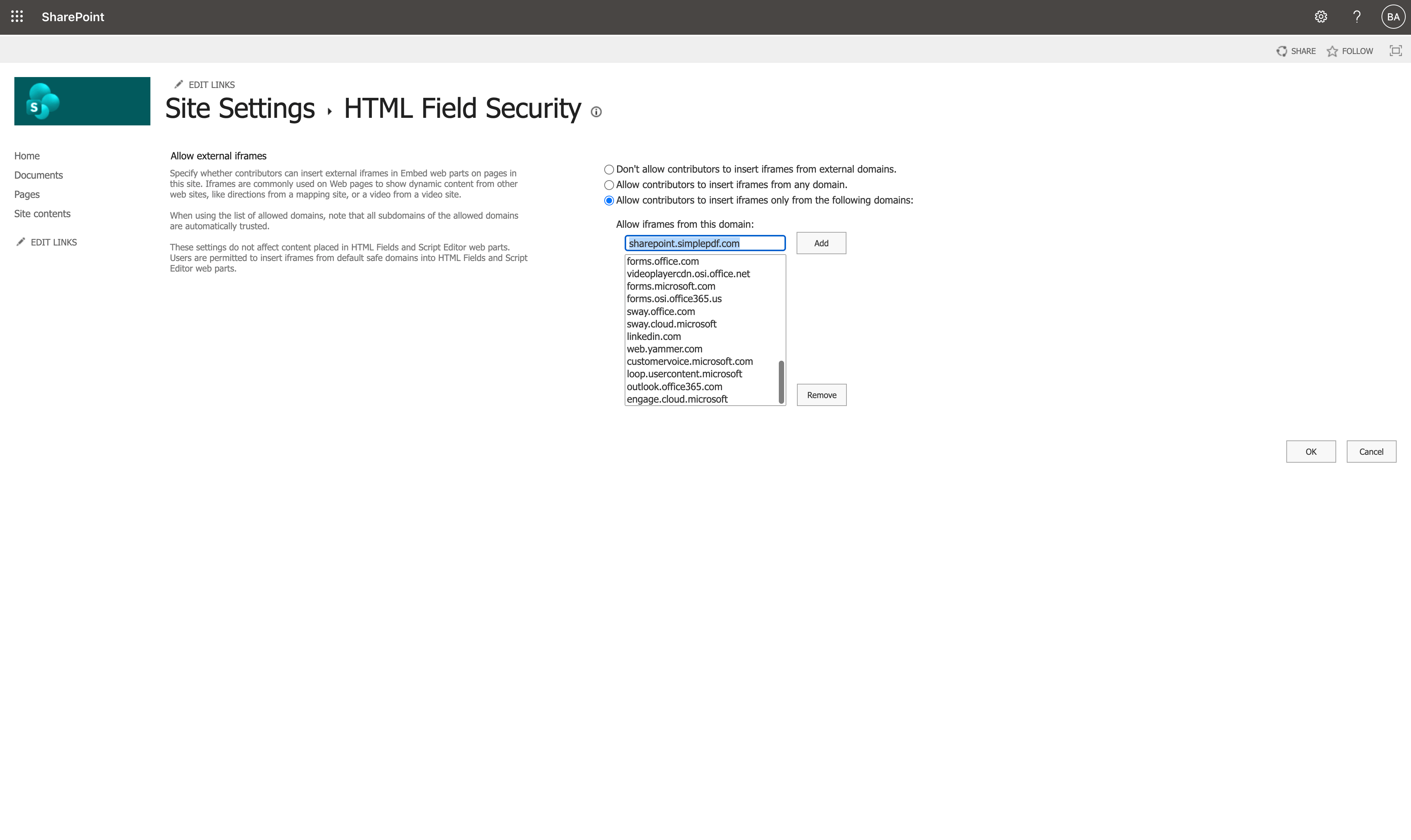
- Under Site Collection Administration, click HTML Field Security
- Select Allow contributors to insert iframes only from the following domains
- Type
sharepoint.simplepdf.comin the input field and click Add - Verify the domain appears in the list, then click OK
Step 2: Add the Embed web part to a SharePoint page
- Navigate to the SharePoint page where you want the PDF editor
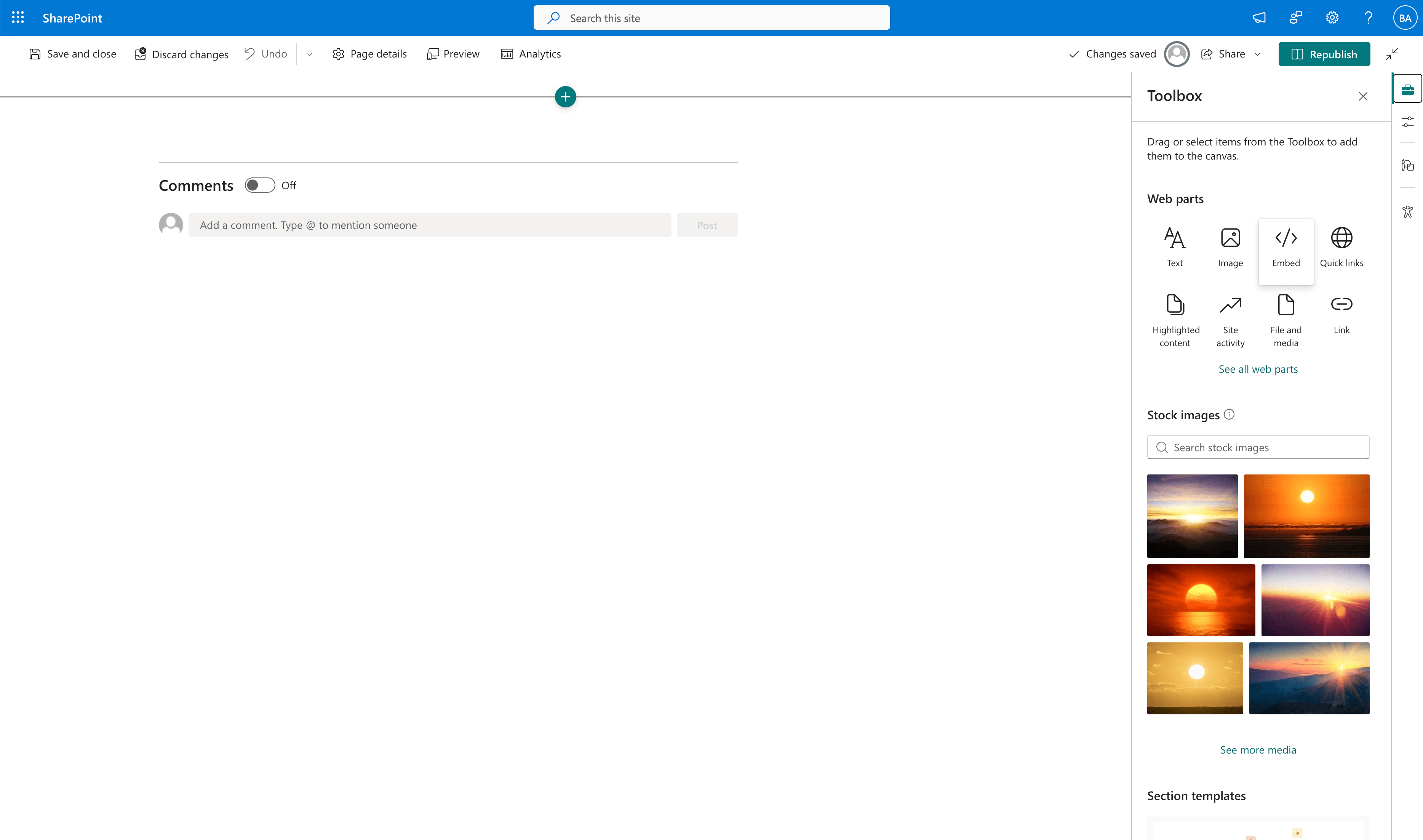
- Click Edit to enter edit mode
- Click the + button to add a new web part
- Search for and select Embed
Step 3: Configure the embed
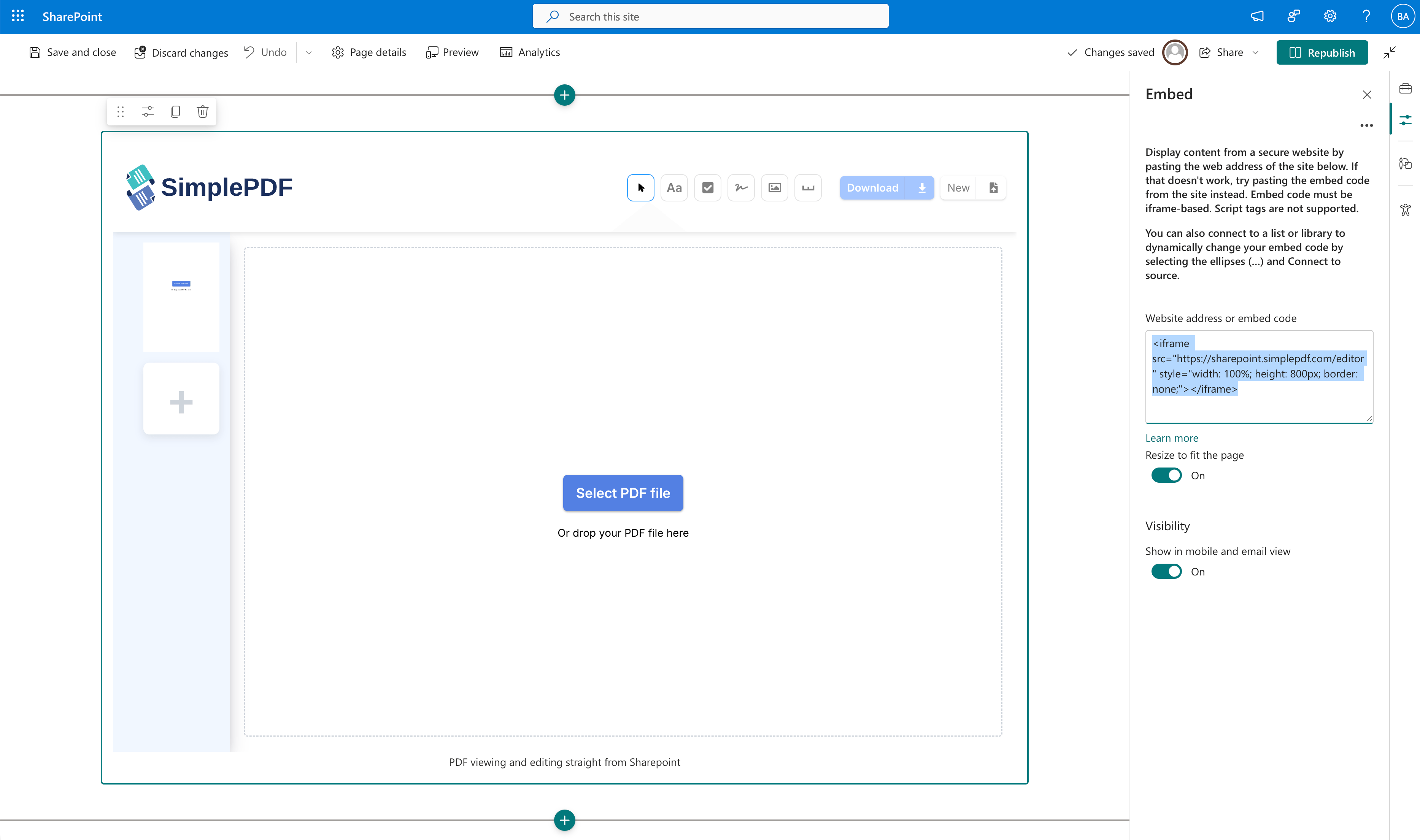
- In the Embed web part, paste the following iframe code:
<iframe src="https://sharepoint.simplepdf.com/editor" style="width: 100%; height: 800px; border: none;"></iframe>- Click Apply or press Enter
Step 4: Publish the page
- Click Republish to save the page
- The SimplePDF editor is now live on your SharePoint page
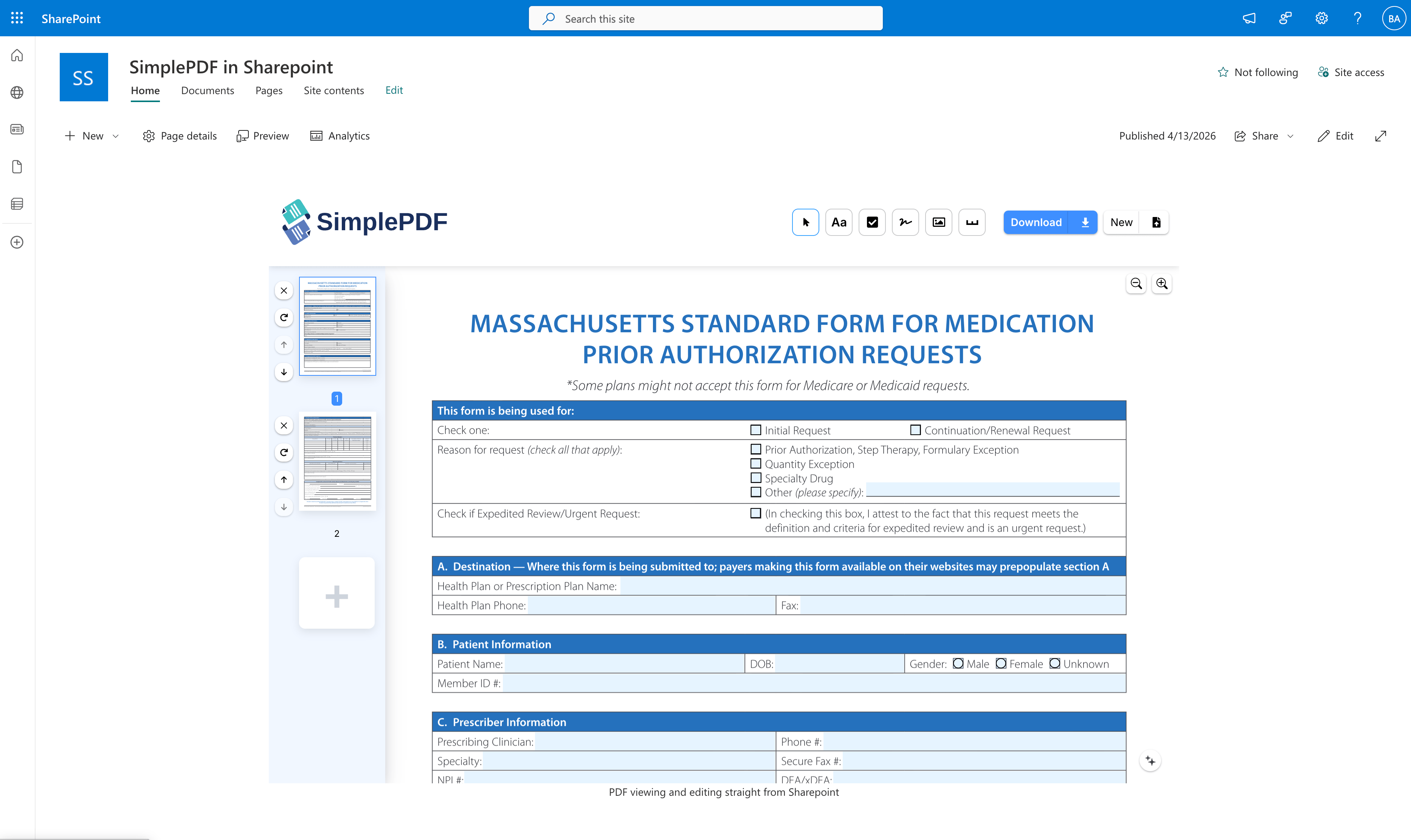
Users can now open PDFs, fill fields, add signatures, and submit documents directly from SharePoint.
Combine with SharePoint BYOS
For a fully integrated experience, configure SharePoint as your storage. When both are set up:
- Users fill and submit PDFs from within SharePoint
- Submitted documents are stored directly in your SharePoint document library
- No documents leave your Microsoft 365 environment
That's it! Your SharePoint page now has a fully functional PDF editor.
If you have any questions, feel free to reach out to support@simplepdf.com